Your students' records stay with you
Sympraxi runs on a server your college controls. No company holds your students' sessions, and a full export is one click. If you ever leave, you take everything.
This is a demo with made-up people. Everything resets each night, and no email or text is ever sent. Please don't enter real information. Switch person
A living demo
Everything on this site works. The people, sessions and numbers are made up, and everything resets each night. Sign in as a student, a tutor, the front desk or the director, and click through a center that has been running for ten weeks.
Sympraxi runs on a server your college controls. No company holds your students' sessions, and a full export is one click. If you ever leave, you take everything.
It is licensed under the AGPL. There is no price per appointment or per tutor, and your IT team can read every line it runs on.
A calendar is the easy part. Sympraxi records what happened in each session, gives the writer a summary and next steps, tags topics, attaches open-license resources, and tracks writing projects across visits.
One set of permission rules decides who sees what. Every read of a student's record is logged. Surveys are anonymous, research exports are de-identified and tied to your IRB dates, and texts need recorded consent.
Built on the U.S. Web Design System and checked against WCAG 2.2 AA in a real browser on every change. Spanish is included for the pages students meet first.
Sign in with Microsoft, Google, any OpenID Connect provider, SAML or CAS. Launch from Canvas, Moodle or D2L. Connect other tools with an API and signed webhooks.
One modest server, one install script, nightly backups and a tested restore. A demo like this one runs on a $24-a-month machine.
Waiting lists, workshops, a staff time clock and kiosk, tutor training and onboarding, early alerts with required reasons, and written feedback, all in the same place.
Sign in as the person on each card, then use the links to land straight on a page.
Book in under a minute, and leave each visit with a written summary and next steps you can come back to.
Your day, your records and your training in one place, with the writer's own words and goals in front of you.
Greet, check in, fix a booking, and see who might not be coming, without a spreadsheet.
Numbers you can put in a report, controls you can explain to your dean, and records that stay yours.
Short videos of the main tasks, with captions. Each one has a transcript and a way to try the same thing yourself.
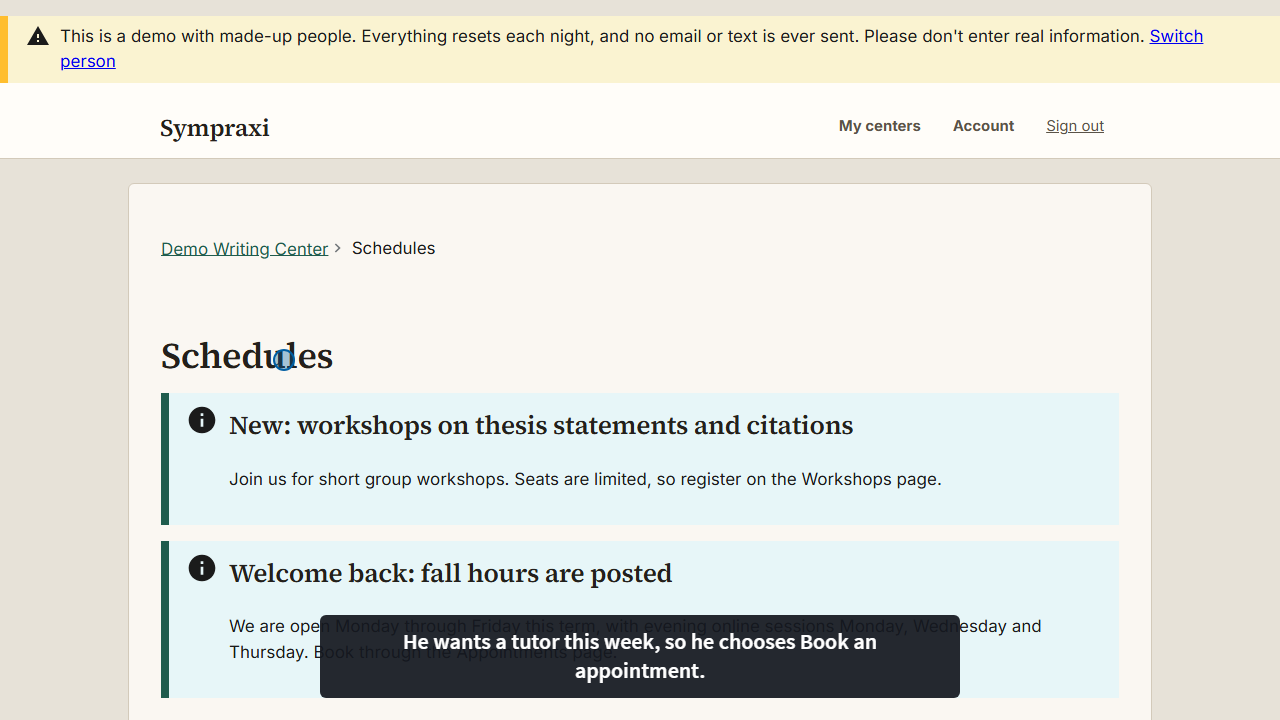
Choose a schedule, a day and a tutor, tell the center what you need, and you are booked.
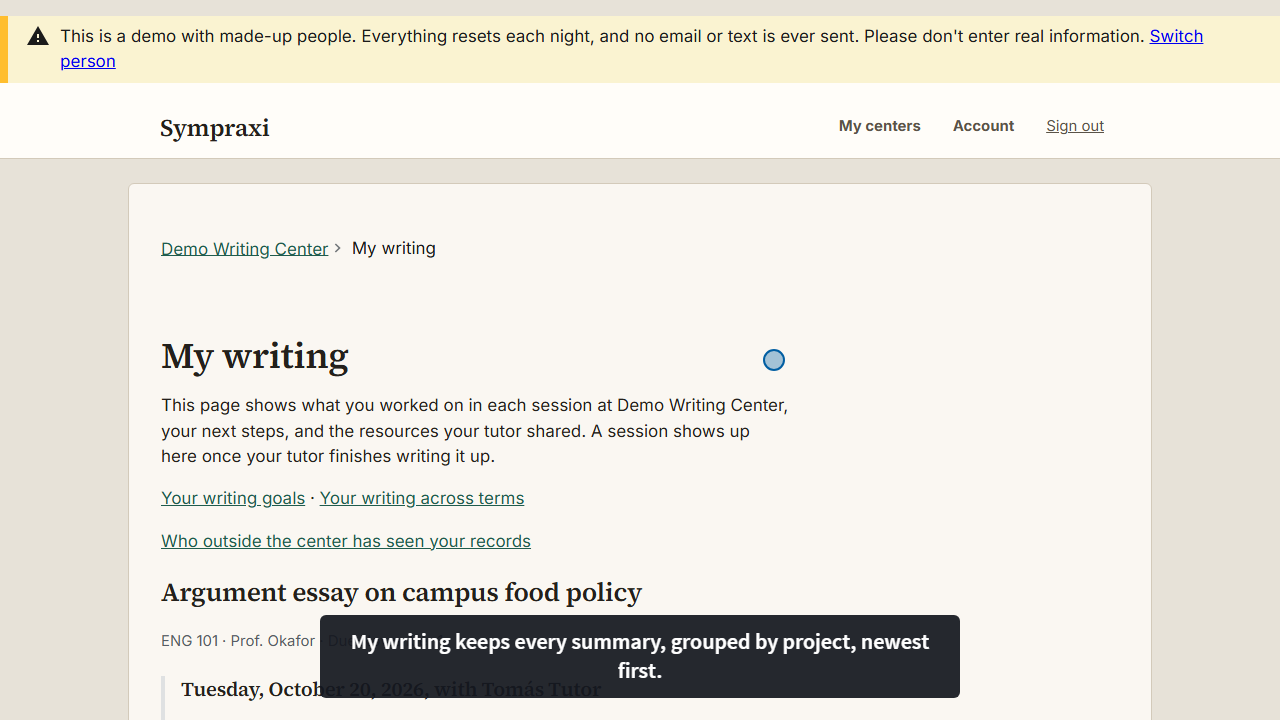
After every visit, your tutor writes you a summary, next steps and resources. They are all in one place.
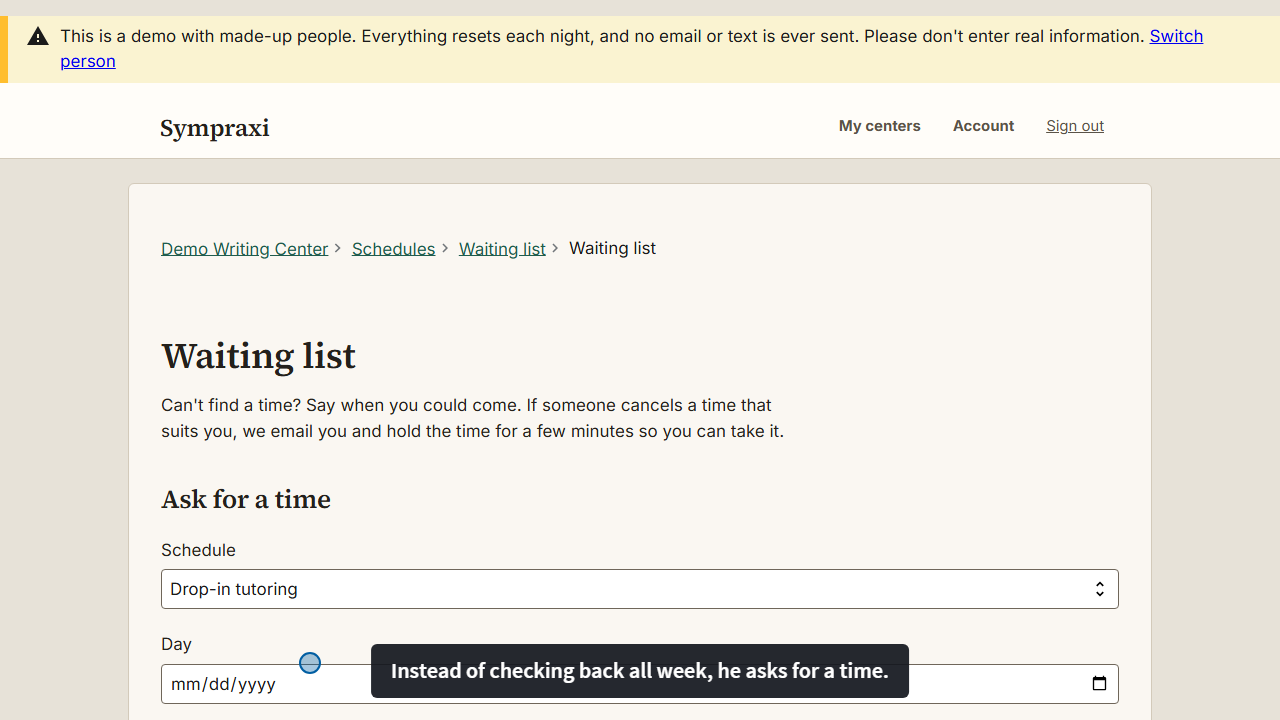
No time that suits you? Say when you could come, and the center holds a canceled time for you.
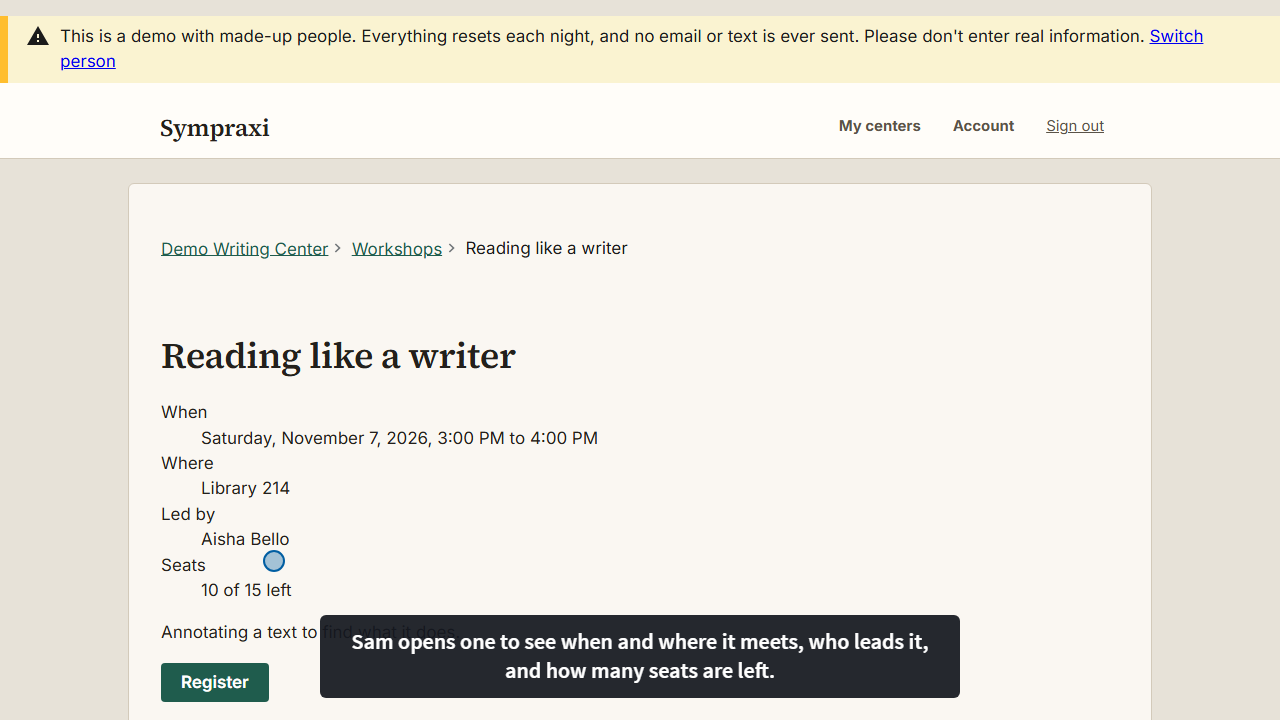
Workshops are short group sessions with seats. Register in a click.
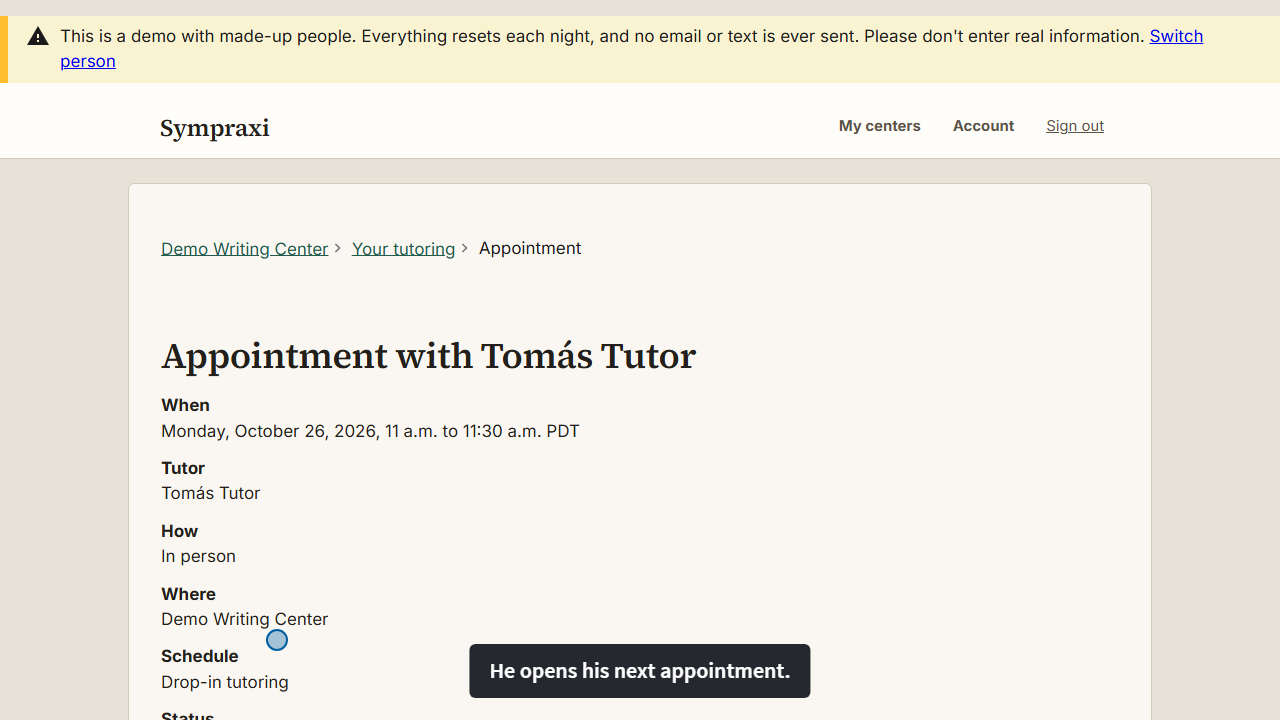
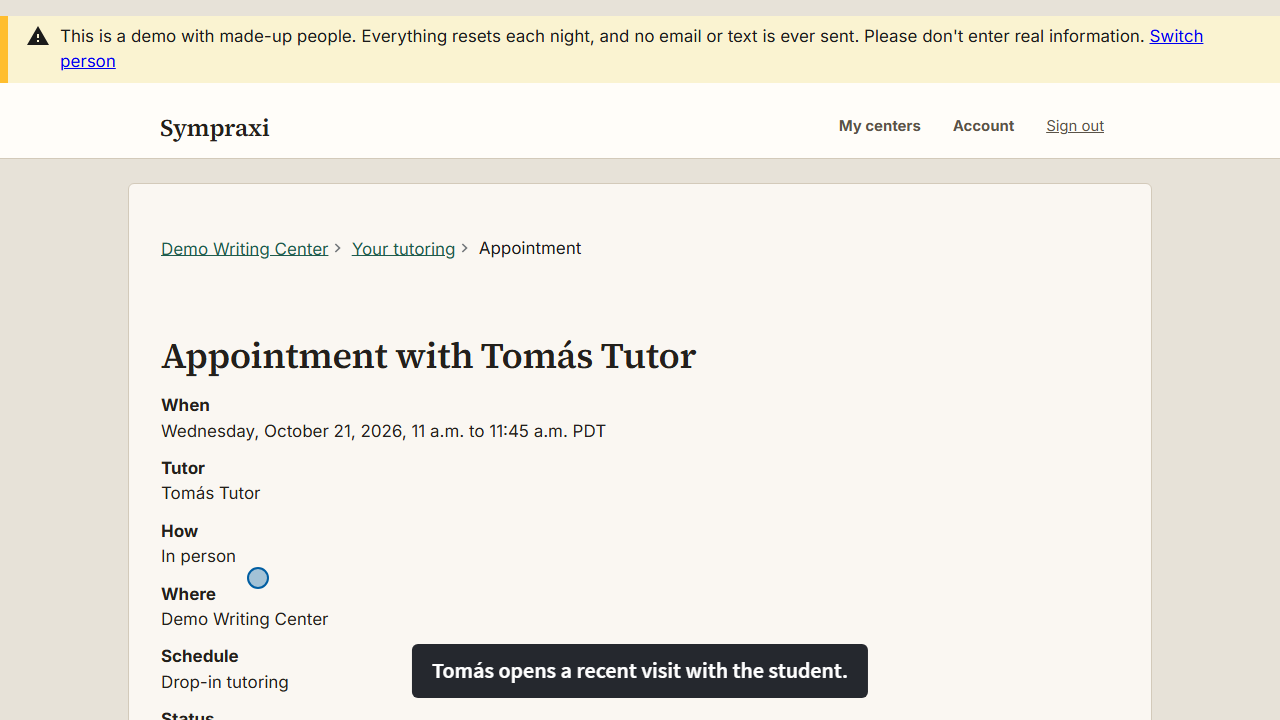
Before the student arrives, see what they told the center, their goals, and what happened last time.
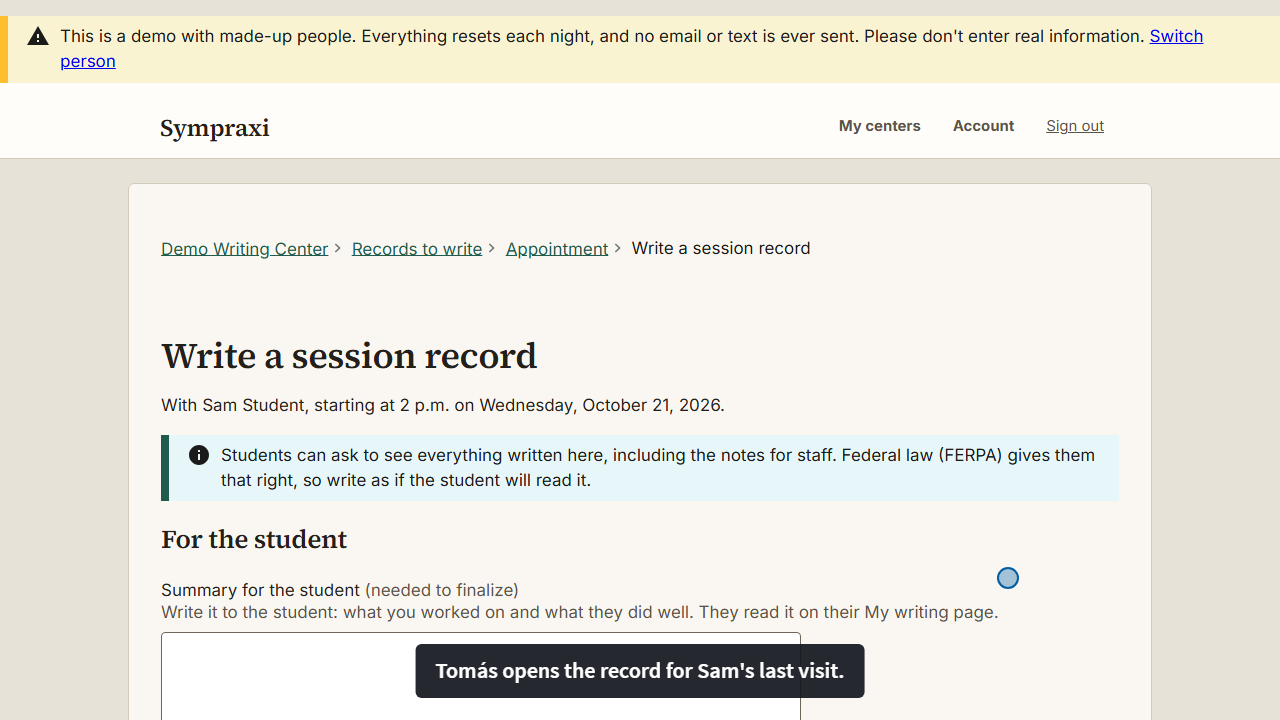
In a few minutes, record what happened: topics, a summary for the writer, next steps and resources.
When you are worried about a student, say why. The right people see it, and it is tracked to a close.
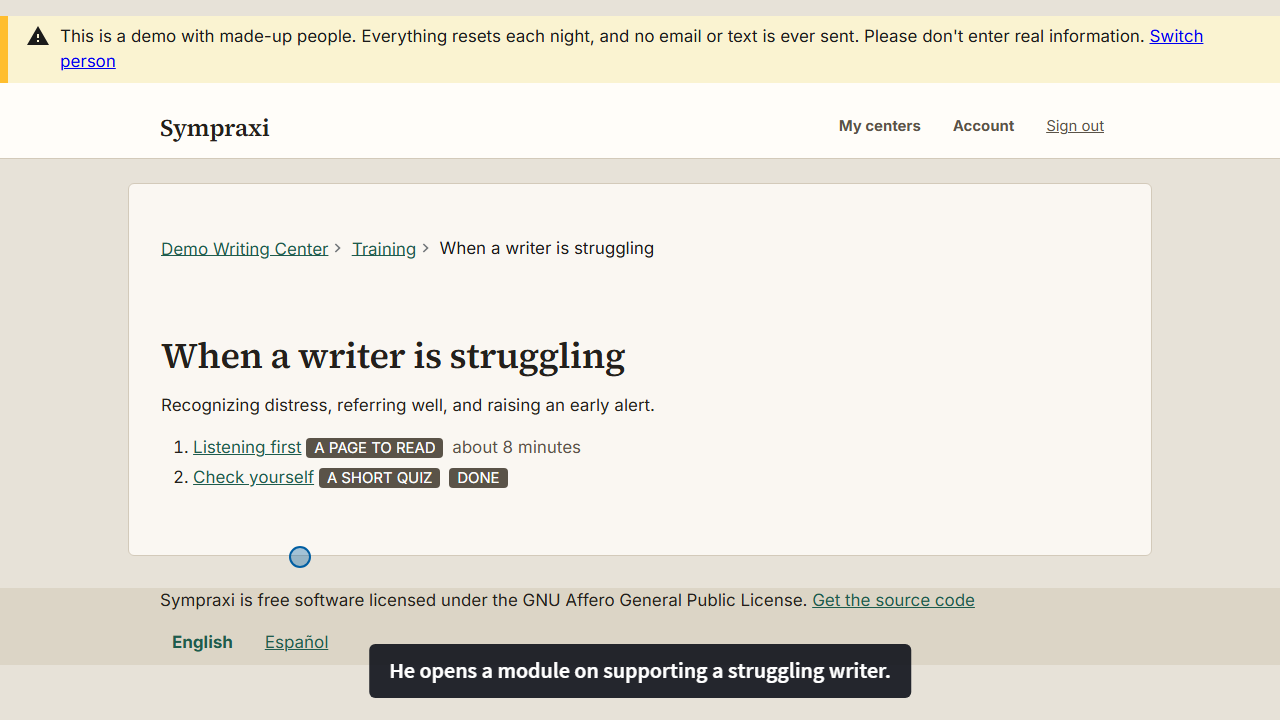
Tutor training lives in the same place as the work: modules, readings and quizzes, tracked for you.
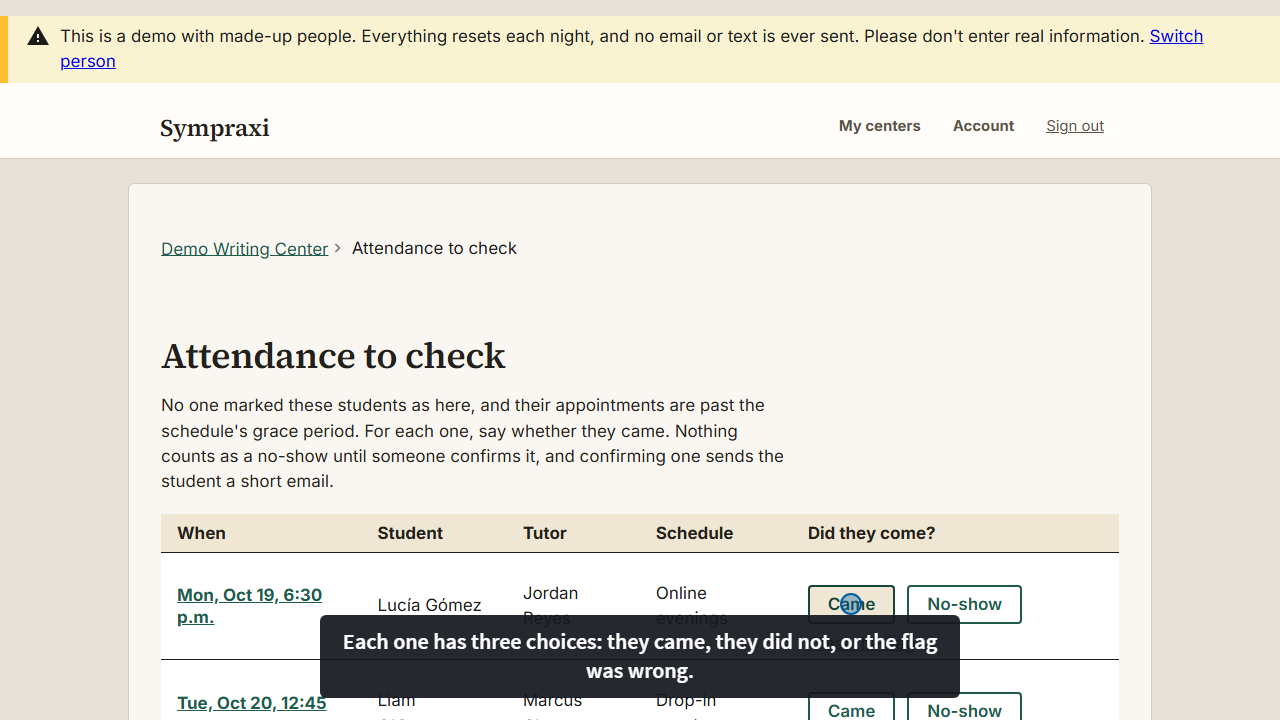
Confirm who came, who did not, and clear any flag, with a note on the record.
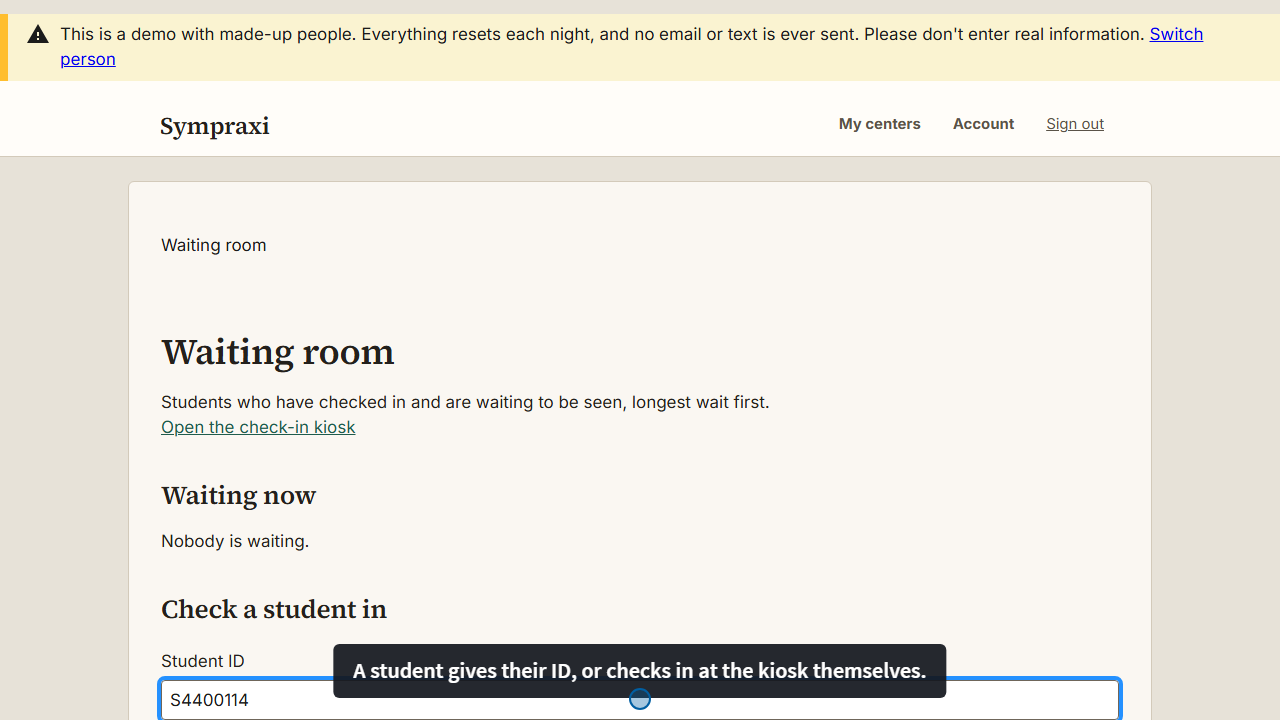
See who is waiting and who is with a tutor, and check a walk-in student in with their ID.
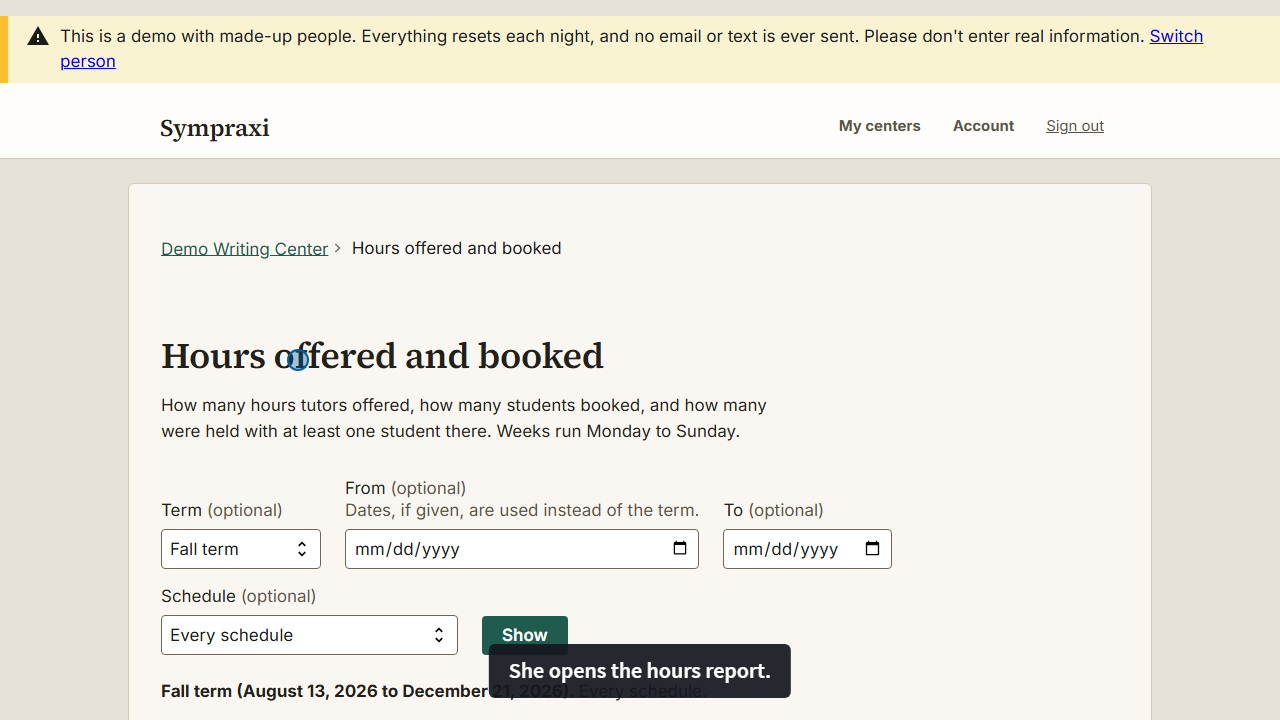
See how many hours you offered and how many were booked, by tutor, schedule and week.
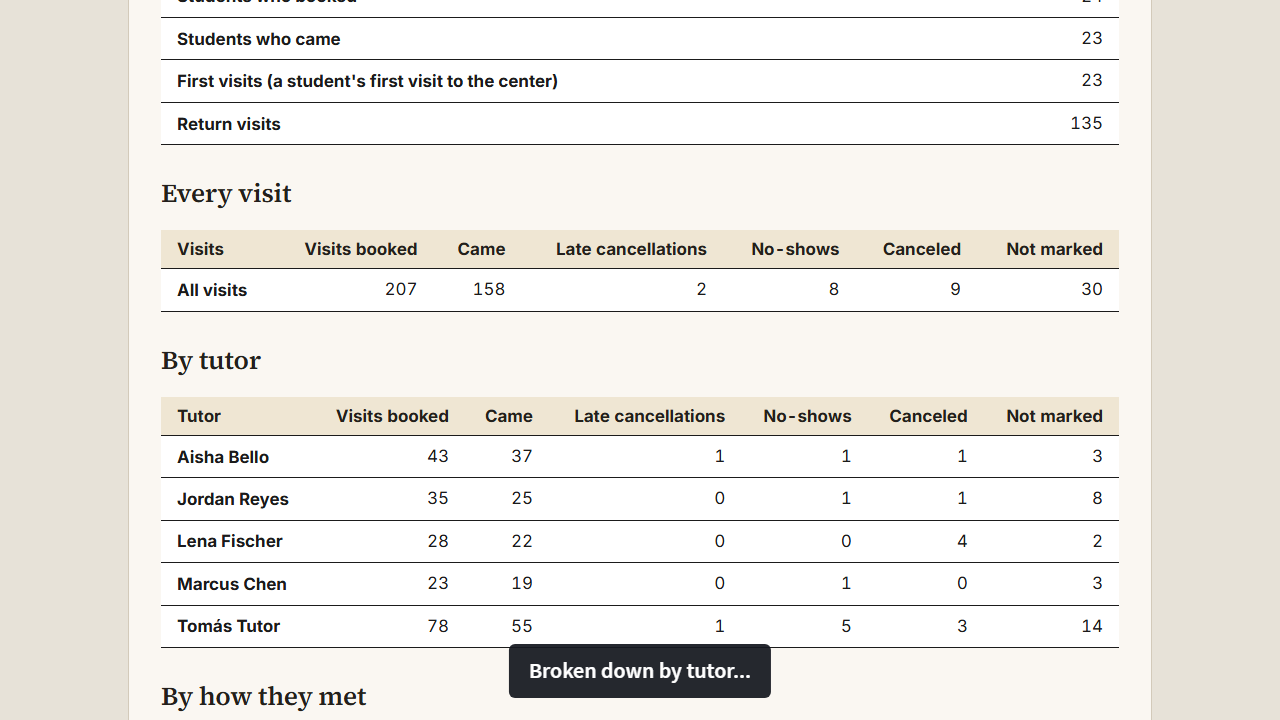
Appointments, visits, no-shows and topics for a term, and who comes from which courses and years.
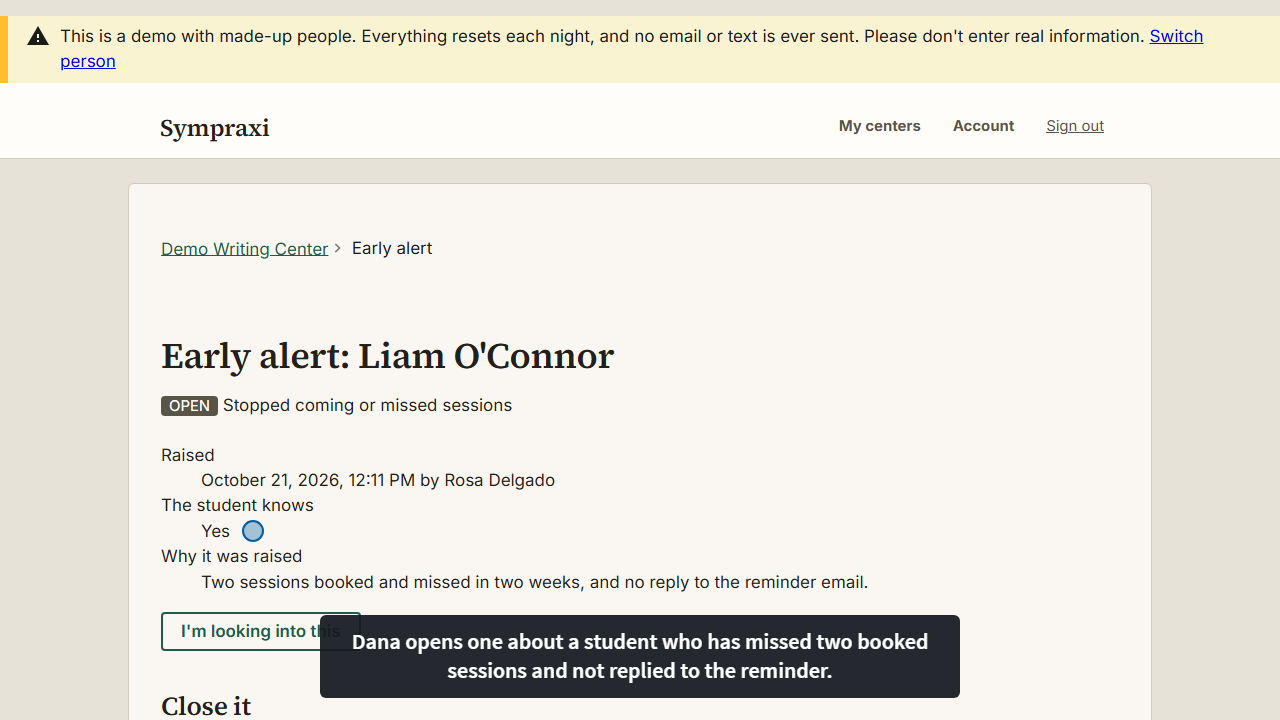
Read the reason, acknowledge it, and close it with a note about what was done.
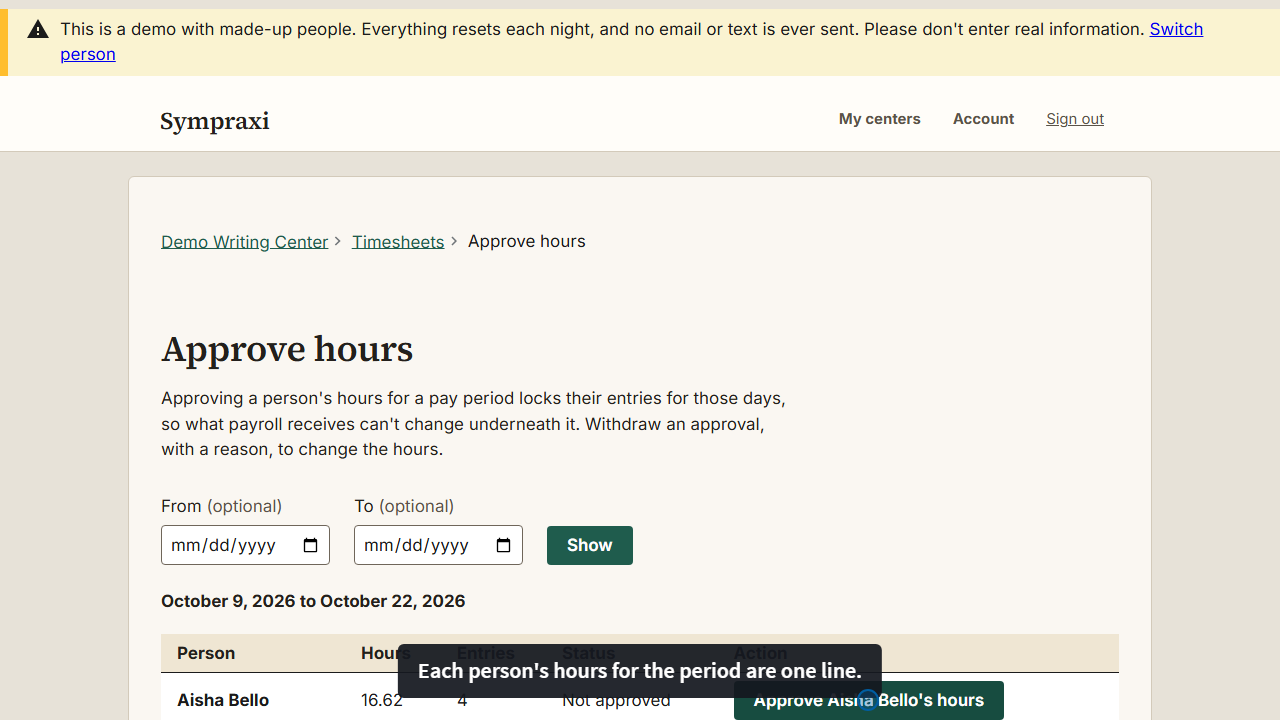
Tutors clock in and out; you review hours by person and approve a pay period.
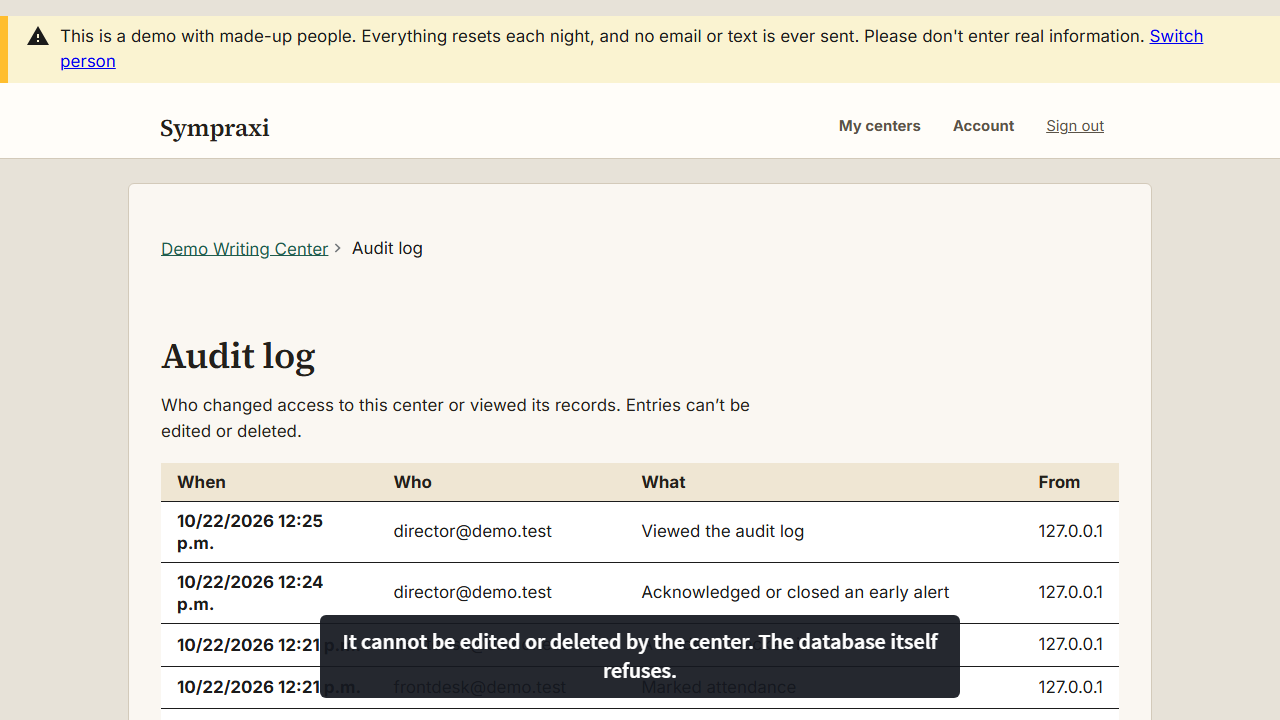
The audit log records every look at a student's record. A full export gives you everything.
Choose anyone. Each one sees the center the way their role would. There are 24 students in all; these show the range.
Start here. Sam is in ENG 101 working on an essay, has more than a dozen sessions behind and the next ones booked.
A first-year engineer writing in his second language, with a tutor who focuses on patterns, not corrections.
A doctoral student on a dissertation timeline, with a standing exemption from the weekly limit.
Anxious about writing, and a tutor has raised an early alert with a reason.
Missed three sessions, so online booking is paused. See what a block looks like for the student and the staff.
A graduate engineer with a journal article in the written-feedback queue.
Peer tutor: argument, first-year composition, and multilingual writers.
Graduate tutor: research writing, citations, literature reviews, theses.
Peer tutor from the sciences: lab reports and technical writing.
Peer tutor: personal statements, creative writing, and reflection.
Evening online tutor; first-year composition and process coaching.
Greets writers, books and moves appointments, and confirms attendance.
Evening and weekend front desk; runs the check-in kiosk.
Runs the center: schedules, reports, forms, alerts, hiring and training.
Assistant director for graduate writing and the writing fellows program.
Sympraxi is scheduling and records software for college writing centers. It books appointments and workshops, records what happens in each session, gives writers a summary and next steps, and gives directors the numbers they report on.
It is free, open-source software that your college runs on its own server.
A calendar answers "who is coming when." A writing center also needs to know what happened: what the writer worked on, what they should do next, which resources helped, and how that adds up across a term. Sympraxi keeps session records, topics, writing projects, goals, surveys, training and staff hours alongside the schedule, with one set of permission rules over all of it.
There is no license fee, no price per appointment and no price per tutor. You pay for a server and for someone's time to install and look after it. A demo like this one runs on a small cloud server for about $24 a month.
It is complete enough to run a center, and it is new. It has not yet run at a college. Its connections to single sign-on, learning systems and text messaging have been tested against stand-ins, not live services, and an accessibility review with assistive technology is still ahead. A pilot center would be the next step.
No. The people, sessions, notes and numbers are made up. No email or text message is ever sent from it, and it resets every night, so feel free to click anything. Please don't type real information.
Choose a schedule, a day and a time, answer a few questions about what you are working on, and book. You get an email with the details and a calendar file.
The steps:
Yes, from your appointments page. Each schedule sets how late is too late; canceling inside that window is a late cancellation, and the center may limit how many a student can have before booking is paused.
Join the waiting list. You say which day, which hours and how long a visit you need. If someone cancels a time that fits, you are emailed and the time is held for you for a few minutes.
The steps:
Your tutor writes a summary of what you worked on and your next steps, and may attach resources. They appear on your My writing page, grouped by writing project, with a timeline across terms. Each center chooses whether you also see the tutor's notes for staff.
The steps:
Yes. Workshops are short group sessions with a limited number of seats. Register on the Workshops page and cancel there if you can't come.
The steps:
By email, at times each schedule sets, for example a day and an hour before. Text message reminders are available if your center turns them on and you opt in. You agree to specific wording, confirm your number with a code, and can reply STOP at any time.
Open the appointment. You see what the writer told the center when they booked, the goals they set, their open writing projects, and your center's last sessions with them.
The steps:
After the visit, open its record from your list of records to write. You tag topics, write a summary and next steps for the writer, attach resources, and answer your center's report questions. When you finalize it, the writer is emailed a link.
The steps:
A way to tell the center you are worried about a student: attendance, engagement, well-being. A reason is required. The director and anyone the center chose can see it, they acknowledge it and close it with a note about what was done, and every step is logged.
The steps:
In the same place as the work. A director publishes modules of pages, readings and quizzes, and tracks who has finished them. New tutors can be placed in a cohort with a mentor, a sign-off checklist and observations.
The steps:
What a person can see depends on their role and on the appointment, and one set of rules decides it everywhere. Students can ask to see everything written about them, including notes for staff, so write as if the student will read it. Each time staff open a record, it is written to the audit log.
The steps:
Watch: Prepare for a session (0:31)
Watch: See who opened what, and take your data with you (0:17)
Nothing counts as a no-show until someone confirms it. When nobody marks attendance, the session appears on Attendance to check, and the front desk says whether the student came. A confirmed no-show tells the student and counts toward the center's limit, after which online booking can be paused. Staff can waive one with a reason.
The steps:
Yes. Check them in at the waiting room by student ID, or let them use the check-in kiosk. The tutor sees who is waiting, and walk-in counts feed the center's reports.
The steps:
Statistics for any term or date range, hours offered and booked by tutor and week, topics by course and class standing, resources tutors attach, a printable day sheet, student lists and survey results. Each downloads as CSV, Excel or JSON.
The steps:
Watch: Run an hours report (0:31)
Watch: Read the statistics and break them down by course (0:21)
Yes. Tutors and the front desk clock in and out, or a director adds hours. Directors approve a pay period, which locks it, and later changes need a reason and are logged. Payroll IDs and pay codes export for HR.
The steps:
Yes. Registration, intake, session-report and survey forms are all built in the app, with versions, so older answers keep the questions they were given. You choose which questions the by-course report reads.
Yes. A student gets a one-time link after a session, and the answer is stored without their name, appointment or record. Results are counted by term.
A director can make a de-identified research export, but only inside the dates of the IRB approval recorded for the center, and each export is logged.
Take everything with you. A full export of the center's data is one page away, and nothing is held by a vendor.
The steps:
Watch: See who opened what, and take your data with you (0:17)
One script on a small Linux server running Docker. Plan on an afternoon, plus time to register your single sign-on. Backups and a tested restore are included, and an update is one command.
Yes: Microsoft Entra ID, Google Workspace, any OpenID Connect provider, SAML 2.0 and CAS. Staff are required to use two-factor login, and a college can hide password sign-in once single sign-on works.
It supports an LTI 1.3 launch, so a student can open it from a course already signed in. It signs people in; it does not yet pass grades or course rosters back.
It is built on the U.S. Web Design System, and every page is checked against WCAG 2.2 AA with automated tests in a real browser on each change, including phone size, forced colors and reduced motion. A review with screen readers and other assistive technology has not been done yet, and a conformance report is drafted but not finished.
Permissions come from one central rule set tested against every page and role. Every read of a student record is logged in an audit log that the database itself refuses to alter. Phone numbers are encrypted, surveys are anonymous, and text messages need recorded consent.
Partly. Sign-in, errors, booking, appointments and account pages are translated, and a person can switch language in the footer. The rest is in English for now, and the Spanish has not yet been reviewed by a fluent speaker.
Yes, from a spreadsheet: a CSV importer reads one past appointment per row, with a preview. A converter for exports from other scheduling systems is not included yet.
Yes. A read and write API with scoped tokens, and signed webhooks that carry ids and never names.
Sign in as a few people here. Break nothing; it resets every night.
Hand them the security questionnaire and accessibility notes that come with the source.
One script on a small Linux server. Plan on an afternoon.
Import past appointments from a spreadsheet so your first term isn't empty.
Connect your single sign-on, add your people, and open the schedule.
A fair look includes what isn't finished: